How to Compress a PDF to 100 KB or Smaller
Get a PDF under a size limit such as 100 KB. How the target works, why some files will not shrink that far, and what to do when they do not.
Upload forms often ask for a PDF under a fixed size: 50 KB, 100 KB, 200 KB. Plain "compress" buttons do not help much here, because you only find out afterwards whether the file fits. This guide shows how to aim for a size, and what to do when the file will not go that low.
The quick way
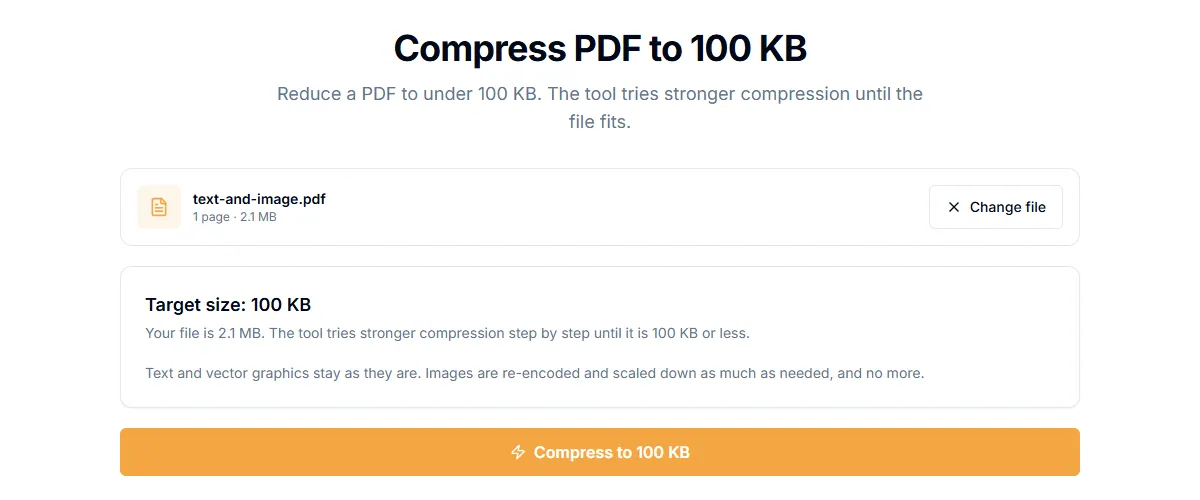
- Open Compress PDF to 100 KB. Other targets are available too: 50 KB, 200 KB, 300 KB, 500 KB, 1 MB and 2 MB.
- Add your PDF.
- Start the compression. The tool tries a light setting first. If the result is still over the target, it tries a stronger one, and keeps going until the file fits or it runs out of settings.
- Download the result.
The work happens in your browser, so the file is not uploaded.
What you will see when it finishes
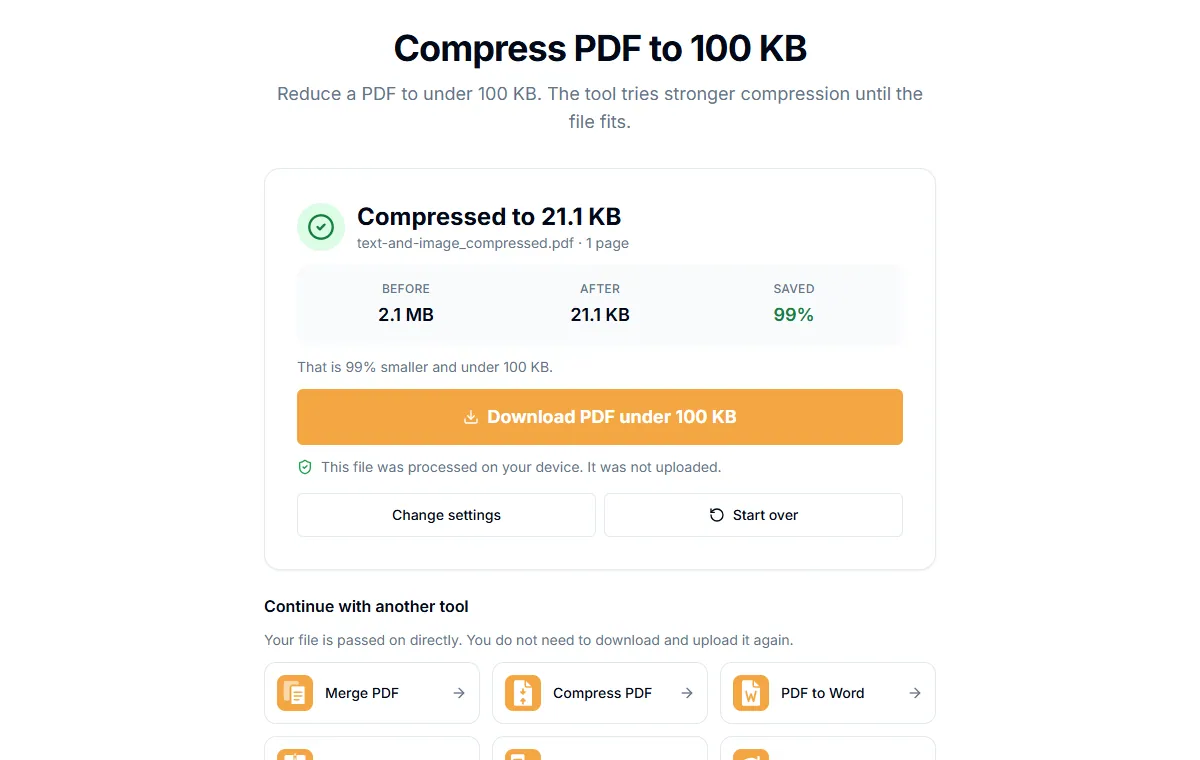
There are three outcomes, and the page tells you which one you got:
- Already under the target. Your file was small enough. Nothing was changed.
- Target reached. The file now fits. The page shows the old and new size.
- Closest we could get. The strongest setting was not enough. You get the smallest file the tool could make, with its size, so you can decide whether it is good enough.
Why some files will not reach the target
A PDF is mostly text, fonts and images. Text and fonts are already small. Images are where the weight is.
- A scan of ten pages is ten large pictures. Compression can shrink these a lot.
- A PDF with only text and a few fonts is already small. There is little to remove.
- A very large file, for example 50 MB, cannot realistically become 50 KB without turning pages into blurry images.
In our own testing, a 51 MB file reached about 75 KB at the strongest setting, so a 50 KB target was reported as not reached. That is the honest result: the tool tells you instead of pretending.
What to try when the file stays too big
- Remove pages you do not need. Use Delete Pages first. Fewer pages means a smaller file.
- Split the document. If the form accepts several files, split the PDF and send the parts.
- Pick a higher target. A limit of 200 KB is often more realistic than 50 KB for a multi-page scan.
- Rescan at a lower resolution. If you control the scan, 150 dpi grayscale is usually enough to read and far smaller than a 300 dpi colour scan.
Does compression reduce quality?
Stronger settings reduce image quality. Small text in a scan can become harder to read. Always open the compressed file and check the pages that matter, such as signatures and numbers, before you send it.
Related guides
Try Our Free PDF Tools
Put what you learned into practice with our free online PDF tools.
Explore Tools