How to Split a Large PDF Into Smaller Files
Split a PDF by file size or in half. Get parts that each fit under a limit, with no upload and one ZIP download.
A large PDF is hard to email, upload or open on a phone. Cutting it into smaller files solves all three. There are two quick ways to do it, depending on what you need.
Split by file size
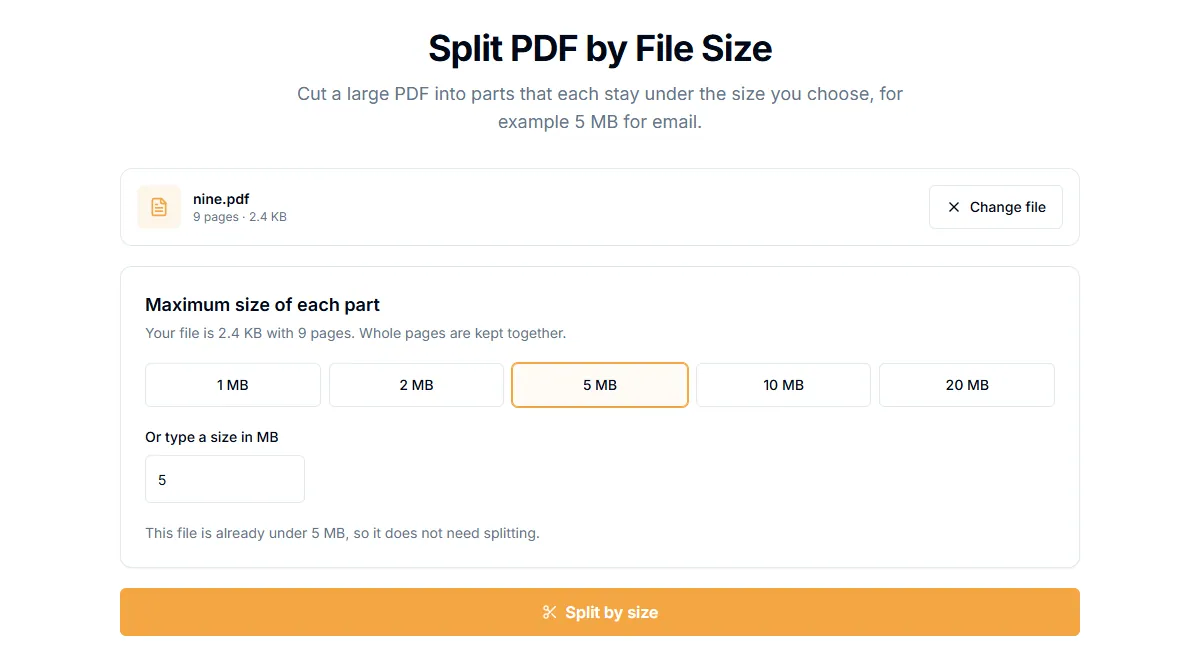
Use this when a limit is the problem: an upload form that accepts 10 MB, or an email that rejects anything over 20 MB.
- Open Split PDF by size.
- Add your PDF.
- Under "Maximum size of each part", pick a size or type a number in MB.
- Select "Split by size".
- Download the ZIP file with the parts.
The tool weighs each page, groups pages in order until a part is nearly full, builds the part, and checks its real size. If a part comes out over the limit, it is split again. In our test, a 51 MB file became 8 parts of about 6.4 MB each under a 10 MB limit.
Two things to know:
- A single page can be larger than the limit. A page is never cut in two. If one scanned page is 12 MB, no part can be under 10 MB. Compress the file first with Compress PDF.
- If the file already fits, the tool tells you that no split is needed.
Split in half
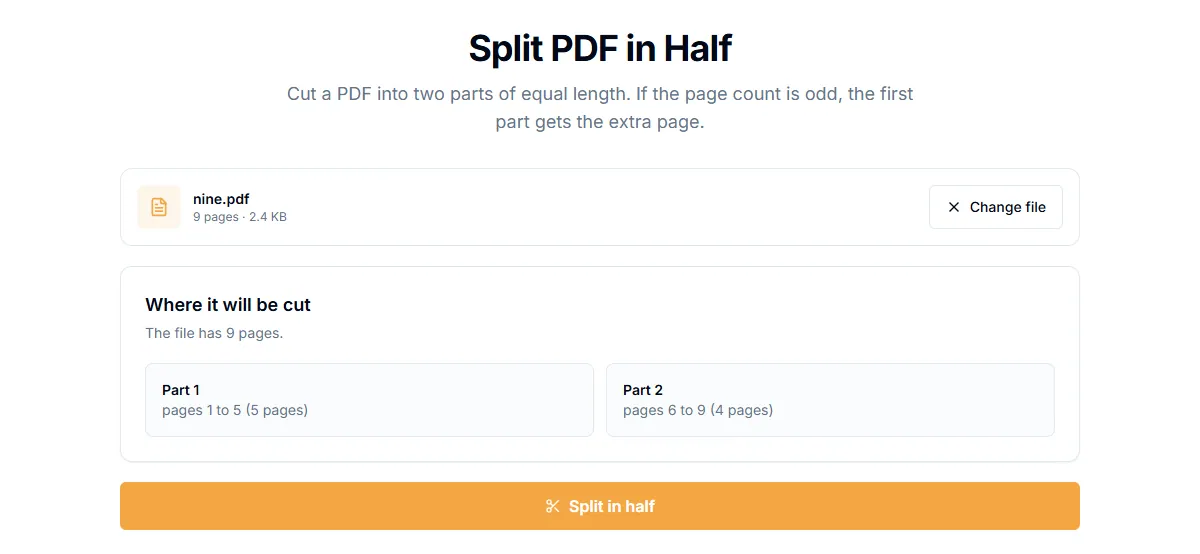
Use this when you just want two parts, for example a long report that you want to read in two sittings.
- Open Split PDF in half.
- Add your PDF.
- Select "Split in half".
With an odd number of pages, the first part gets the extra page. A one-page file cannot be split, so the button is disabled.
Split by page ranges or every page
For a custom cut, such as chapters at pages 1 to 12 and 13 to 30, use the main Split PDF tool, which lets you choose the ranges.
Tips
- Check the order. Parts are numbered in page order so they are easy to put back together.
- Join them again later. Use Merge PDF to combine the parts back into one file.
- Keep quality. Splitting does not change the pages, so there is no quality loss, unlike compression.
Is it private?
Splitting runs in your browser. The file is not uploaded, which matters for contracts, medical files and IDs.
Related guides
Try Our Free PDF Tools
Put what you learned into practice with our free online PDF tools.
Explore ToolsRelated Articles
How to Add a Header and Footer to a PDF
Put a title, date, confidential label or page count in the top or bottom margin of every page of a PDF. Six positions, no upload.
How to Add Page Numbers to a PDF
Add page numbers to a PDF online: pick a format and position, start from any number and skip the cover page. No upload needed.
How to Edit PDF Metadata: Title, Author and Keywords
Change or remove the title, author, subject and keywords stored inside a PDF. Why it matters for privacy and for how your file looks in search and tabs.