How to Convert WebP, GIF, BMP, SVG, TIFF and JFIF Images to PDF
Turn any common image format into a PDF in your browser. Page size, orientation and margin options, plus what happens with animated or multi-page images.
JPG and PNG are only two of the image formats you meet. Phones and websites also produce WebP, scanners produce TIFF, and designers send SVG. Here is how to turn each one into a PDF, and where the limits are.
Pick the page for your format
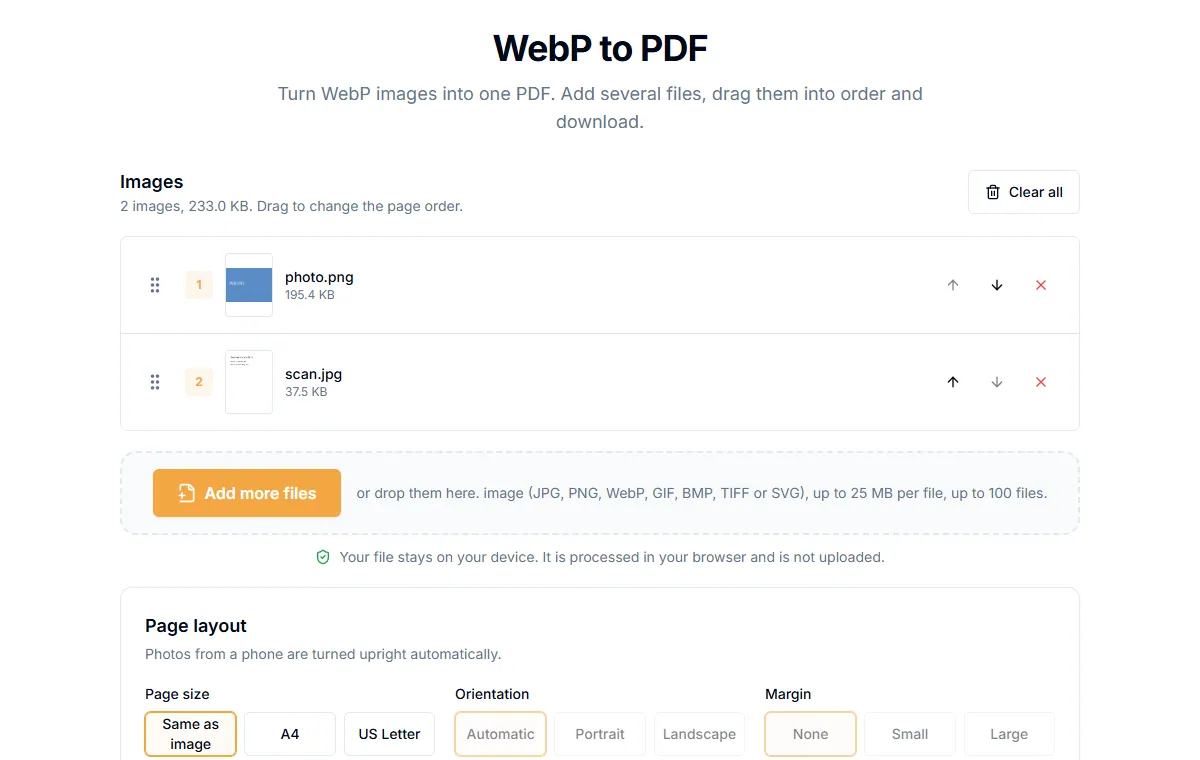
All of them accept several images at once and can mix formats. Each image becomes one page.
Steps
- Open the page for your format.
- Add one or more images. Drag to put them in the order you want.
- Choose "Page size": "Same as image", "A4" or "US Letter".
- If you picked A4 or US Letter, set "Orientation" (automatic, portrait or landscape) and "Margin".
- Select the button to create the PDF, then download it.
"Same as image" gives a page that matches the picture exactly with no margins. A4 or US Letter fits the image onto a standard sheet, which is better if you plan to print.
What happens with each format
| Format | Notes |
|---|---|
| WebP | Converted as it is. Animated WebP uses the first frame only |
| GIF | The first frame is used. A PDF page cannot play an animation |
| BMP | Works like any other image. BMP files are often large, so compress the PDF afterwards if needed |
| SVG | Drawn into a sharp image (long side 2400 pixels). It is not kept as vector inside the PDF |
| TIFF | The first page of a multi-page TIFF is used. Save other pages as separate images to add them |
| JFIF | A JPEG variant. Works like JPG |
Tips for good results
- Order matters. Name your files
01,02,03or drag them into order before you create the PDF. - Resolution. A photo of a document at 1500 pixels wide is readable. Smaller can look blurry on a full page.
- File size. Many high-resolution photos make a big PDF. Run it through Compress PDF afterwards if needed.
- Make text searchable. A PDF made from photos has no text layer. Use OCR to make it searchable. See how to OCR a scanned PDF.
Is it private?
Conversion runs in your browser. The images are not uploaded.
Related guides
Try Our Free PDF Tools
Put what you learned into practice with our free online PDF tools.
Explore ToolsRelated Articles
How to Convert a Text File to PDF
Turn a TXT, Markdown, CSV or log file into a PDF, or type text and save it as a PDF. Word wrap and pages are handled for you.
How to Extract Text from a PDF as a TXT File
Copy all the text out of a PDF into a plain text file. How it works for normal PDFs, what to do with scans, and tips for clean results.
How to OCR a Scanned PDF and Make It Searchable
Turn a scanned PDF into one you can search and copy from. Pick the language, choose a searchable PDF or plain text, and learn how to get the best accuracy.