How to Extract Text from a PDF as a TXT File
Copy all the text out of a PDF into a plain text file. How it works for normal PDFs, what to do with scans, and tips for clean results.
Selecting text in a PDF and pasting it works for a paragraph. For a whole document, a text file is easier. You can search it, edit it or feed it to another program.
Steps
- Open Extract Text from PDF.
- Add your PDF.
- Select "Extract text".
- Download the TXT file.
The file has a heading for each page, such as --- Page 1 ---, and the text below it. Lines are rebuilt from how the text sits on the page. It runs in your browser, so the document is not uploaded.
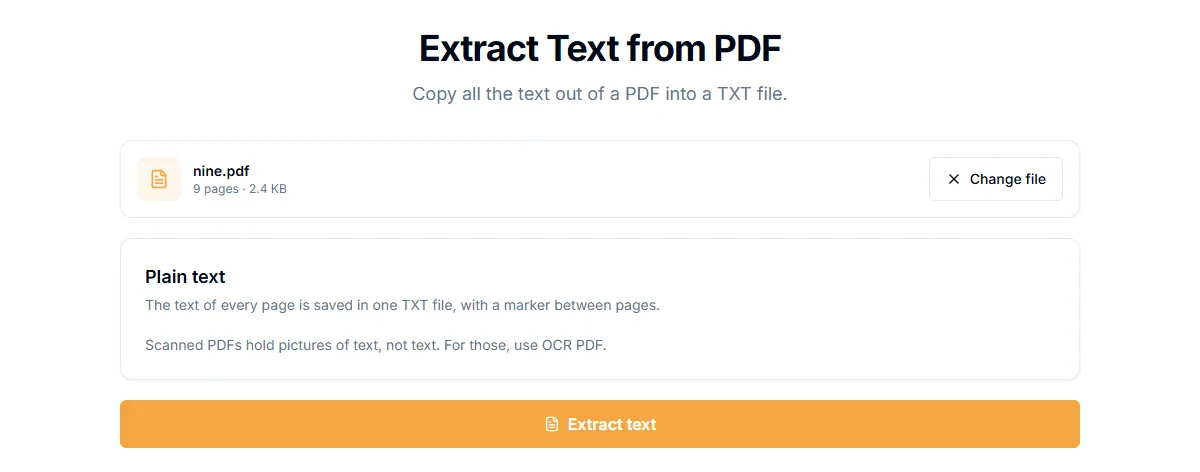
Scanned PDFs have no text to extract
A scan is a photo of a page. There are no letters in it, only pixels. If the PDF is a scan, the result page says "No text found" and suggests OCR.
To get text from a scan:
- Open OCR PDF.
- Pick the language of the document.
- Run it and download the text or a searchable PDF.
OCR also runs in your browser, so a scan is not uploaded. More in how to OCR a scanned PDF.
How to tell if a PDF has text
Try to select a word with your mouse. If it highlights, the PDF has real text. If it selects the whole page like a picture, it is a scan.
Tips for cleaner results
- Columns. Text in two columns usually comes out in reading order, but check the result for pages with sidebars and tables.
- Tables. Tables become lines of text. For data work, copy the result into a spreadsheet and clean it there.
- Hyphens at line ends. Words split across lines may stay split. Use find and replace in your editor.
- Fonts. A few PDFs use fonts that do not map to real letters, so the text comes out garbled. In that case run OCR on the PDF instead.
When you need Word instead
For a document you want to edit with layout, use PDF to Word. It also runs in your browser. It keeps headings and paragraphs, but not tables or columns.
Related guides
Try Our Free PDF Tools
Put what you learned into practice with our free online PDF tools.
Explore ToolsRelated Articles
How to Convert WebP, GIF, BMP, SVG, TIFF and JFIF Images to PDF
Turn any common image format into a PDF in your browser. Page size, orientation and margin options, plus what happens with animated or multi-page images.
How to Convert a Text File to PDF
Turn a TXT, Markdown, CSV or log file into a PDF, or type text and save it as a PDF. Word wrap and pages are handled for you.
How to OCR a Scanned PDF and Make It Searchable
Turn a scanned PDF into one you can search and copy from. Pick the language, choose a searchable PDF or plain text, and learn how to get the best accuracy.