How to OCR a Scanned PDF and Make It Searchable
Turn a scanned PDF into one you can search and copy from. Pick the language, choose a searchable PDF or plain text, and learn how to get the best accuracy.
A scanned PDF is a stack of pictures. You cannot search it, select a word or copy a paragraph. OCR, short for optical character recognition, reads the pictures and adds the text.
Steps
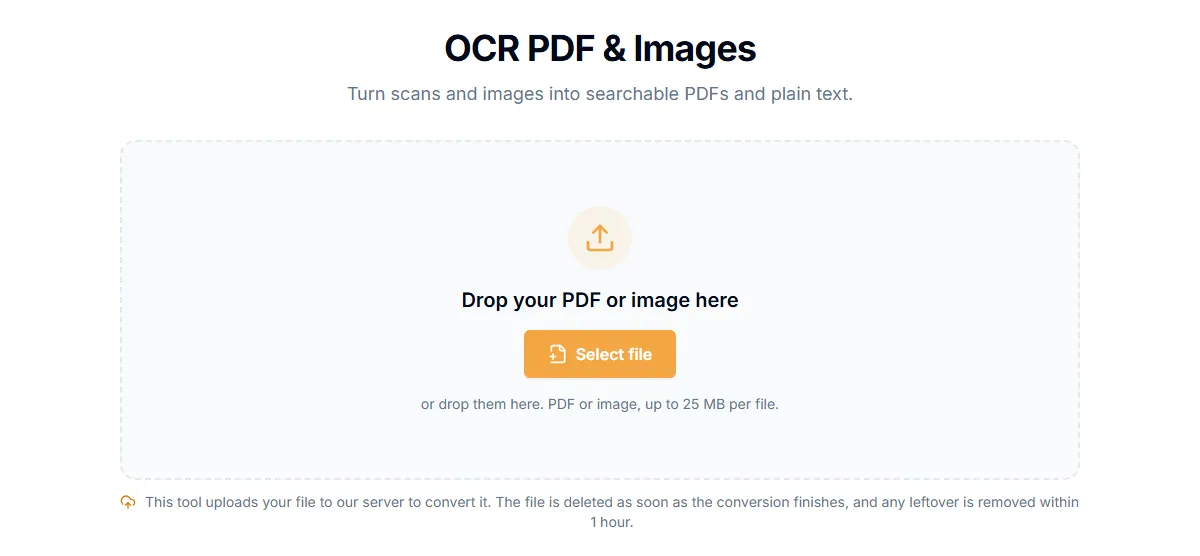
- Open OCR PDF.
- Add your scanned PDF.
- Under "Language of the document", pick the language the text is written in. This gives the best accuracy.
- Under "Result", choose a searchable PDF or plain text.
- Select "Make searchable PDF" or "Extract text" (the button changes with your choice).
- Download the result. For text you can also read it in the "Recognized text" box first.
Searchable PDF or text?
- Searchable PDF. Looks like the original scan, with an invisible text layer on top. You can search and select. Pick this to keep the look.
- Plain text. Just the words, in a TXT file. Pick this when you want to edit or reuse the content.
Where the work happens
OCR runs in your browser, so the scan is not uploaded. The first time, the page downloads the language data for the language you choose, a few megabytes from our own site. Your device does the recognition, so a long document takes a while. It handles up to 50 pages at a time.
Because nothing is uploaded, OCR is also fine for sensitive documents. Read are online PDF tools safe?.
Get better accuracy
- Scan at 300 dpi. Lower than 200 dpi makes small text unreliable.
- Straight pages. Skewed scans lose accuracy. Fix a rotated page first with Rotate PDF.
- High contrast. Dark text on a white page works best. Faded copies and shadows near the spine cause errors.
- The right language. A wrong language makes accents and special characters fail.
- File size. The tool has a size limit, shown on its page. Split a long document with Split PDF if needed.
Always proofread
OCR is good, not perfect. Check names, numbers and anything legal before you rely on it. Numbers such as 1, 7 and 0 are easy to mix up.
Related guides
Try Our Free PDF Tools
Put what you learned into practice with our free online PDF tools.
Explore ToolsRelated Articles
How to Convert WebP, GIF, BMP, SVG, TIFF and JFIF Images to PDF
Turn any common image format into a PDF in your browser. Page size, orientation and margin options, plus what happens with animated or multi-page images.
How to Convert a Text File to PDF
Turn a TXT, Markdown, CSV or log file into a PDF, or type text and save it as a PDF. Word wrap and pages are handled for you.
How to Extract Text from a PDF as a TXT File
Copy all the text out of a PDF into a plain text file. How it works for normal PDFs, what to do with scans, and tips for clean results.