How to Invert PDF Colors for Dark Mode Reading
Turn white pages dark for night reading, or save ink by inverting a PDF. Choose the sharpness, and know what changes inside the file.
White pages are hard on the eyes in a dark room. Inverting the colors gives you light text on a dark background. It can also save ink if a page is mostly dark, such as a dark slide deck, and you want a light version to print.
Steps
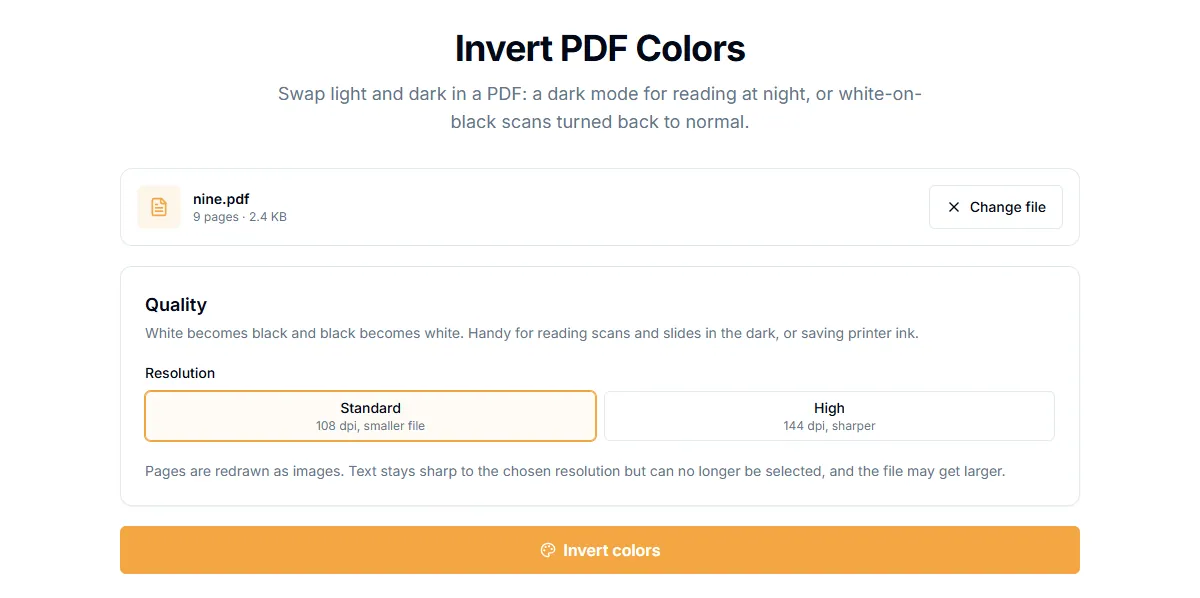
- Open Invert PDF Colors.
- Add your PDF.
- Choose "Resolution": "Standard" (108 dpi, smaller file) or "High" (144 dpi, sharper).
- Select "Invert colors" and download the file.
Each page is drawn, its colors are flipped and the page is saved as a picture. In our test, a white page came out nearly black. It runs in your browser, so the file is not uploaded.
What you lose
Because pages become pictures:
- Text can no longer be selected or searched. The new file has no text layer. Keep your original for that.
- File size can grow. A pictured page is larger than a page of plain text. "Standard" keeps it smaller.
- Links and form fields stop working.
If you need text you can select, run OCR on the result, or keep using the original for search and use the inverted copy for reading.
Which resolution to pick
- Standard is fine for reading on a phone or tablet, and keeps the file small.
- High is better for small print and for reading on a large screen.
Photos look odd
Inverting turns photos into negatives. For pages with pictures, the inverted copy is good for text-heavy reading but not for looking at images. Look at the pictures in the original.
Dark mode in your reader
Many PDF readers have their own night or dark mode. It changes the display only and keeps the file as it is. Try that first. Use the tool when your reader has no such mode or you need a dark copy to share.
Related guides
Try Our Free PDF Tools
Put what you learned into practice with our free online PDF tools.
Explore ToolsRelated Articles
How to Add a Header and Footer to a PDF
Put a title, date, confidential label or page count in the top or bottom margin of every page of a PDF. Six positions, no upload.
How to Add Page Numbers to a PDF
Add page numbers to a PDF online: pick a format and position, start from any number and skip the cover page. No upload needed.
How to Edit PDF Metadata: Title, Author and Keywords
Change or remove the title, author, subject and keywords stored inside a PDF. Why it matters for privacy and for how your file looks in search and tabs.